
Appearance
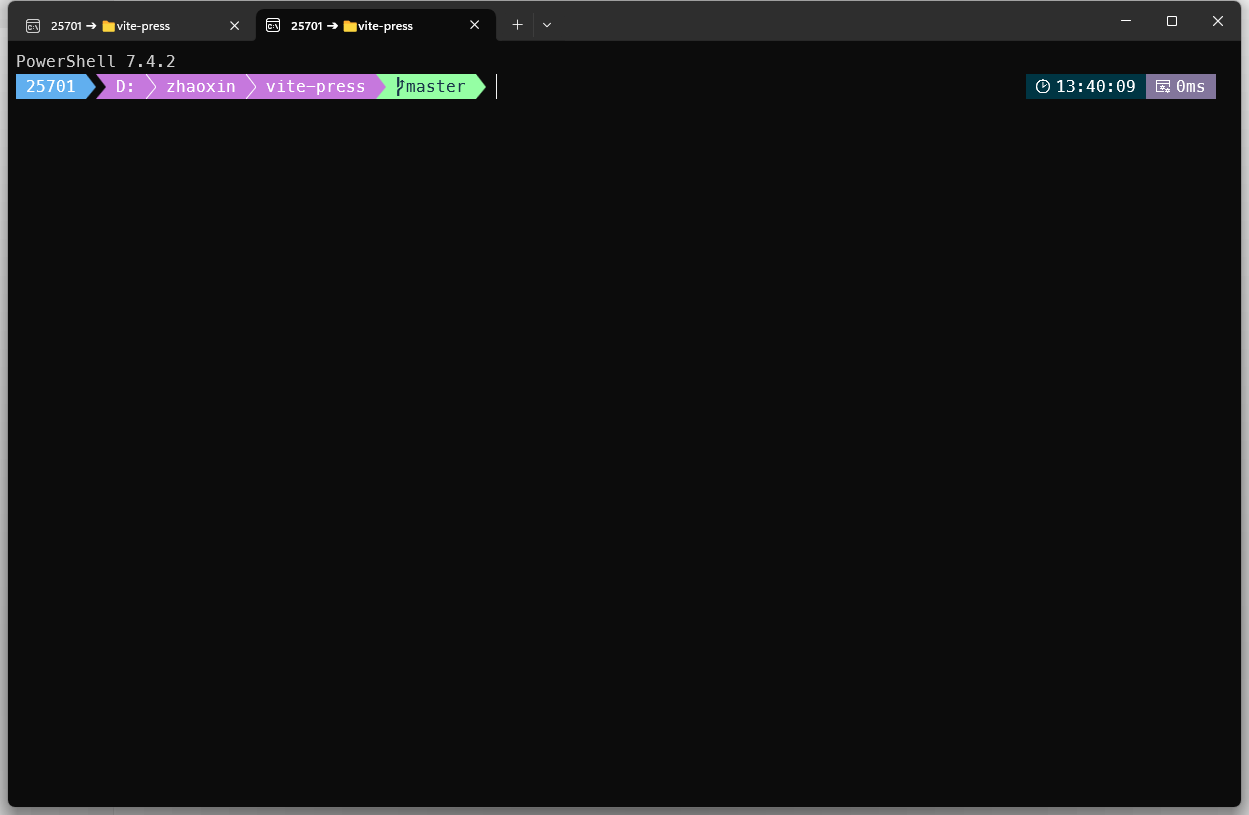
安装 Windows Terminal
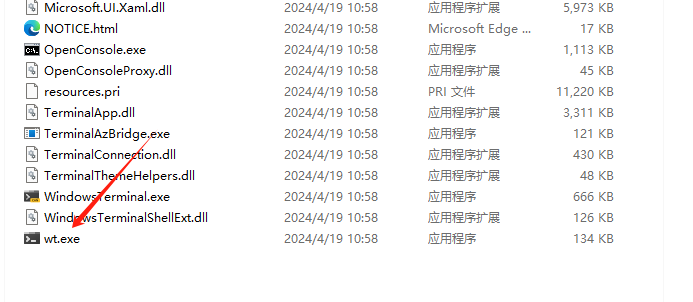
一般来说win11会自带 我这次安装的是便携版本
安装PowerShell7
安装 ohmyposh
powershell
Set-ExecutionPolicy Bypass -Scope Process -Force; Invoke-Expression ((New-Object System.Net.WebClient).DownloadString('https://ohmyposh.dev/install.ps1'))这将安装:
oh-my-posh.exe:Windows 可执行文件themes:最新的主题
查找软件安装位置
powershell
where.exe oh-my-posh下载字体
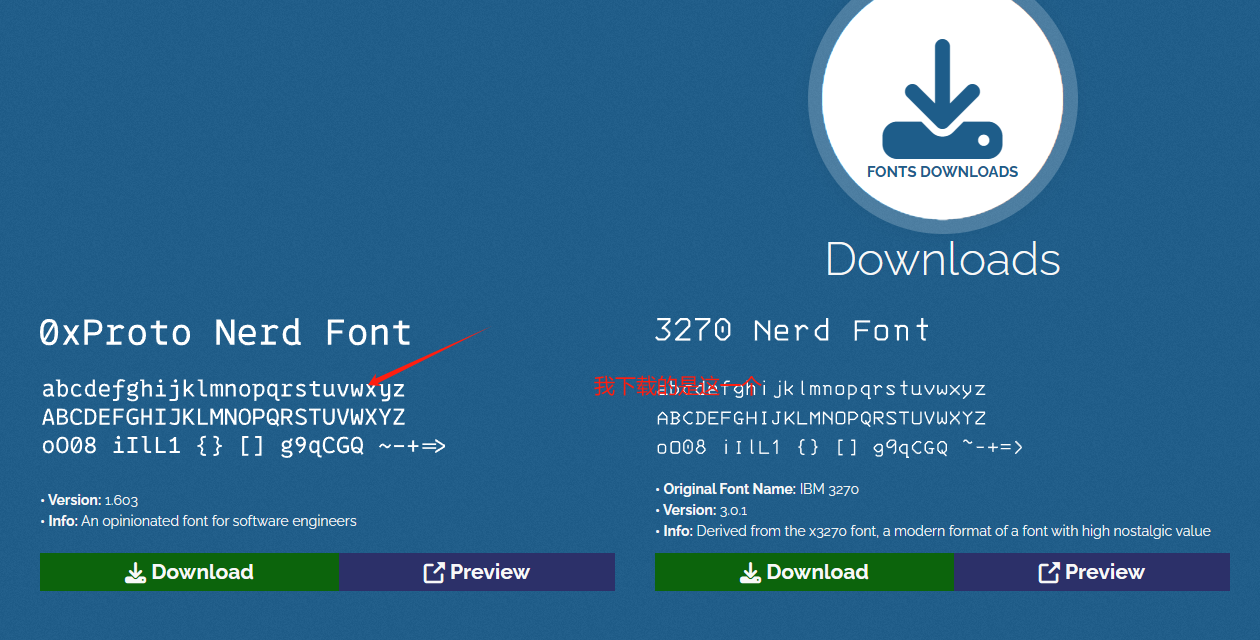
部分 Oh my posh 主题有一些特殊的字符,例如表示系统类型的徽标、GitHub 标志,这些字符需要特殊的字体支持。如果看上了一款有这些字符的主题,必须提前下载安装合适的字体,并将它们设置为终端显示的字体
这里推荐使用 Nerd Fonts 系列字体,它们在支持各种特殊字符的同时,设计也比较养眼
下载主题
# 这里介绍最简单的本地配置
# 下载主题
Get-PoshThemes
# 最下面会显示主题存储位置,例如C:\Users\xxxx\AppData\Local\Programs\oh-my-posh\themes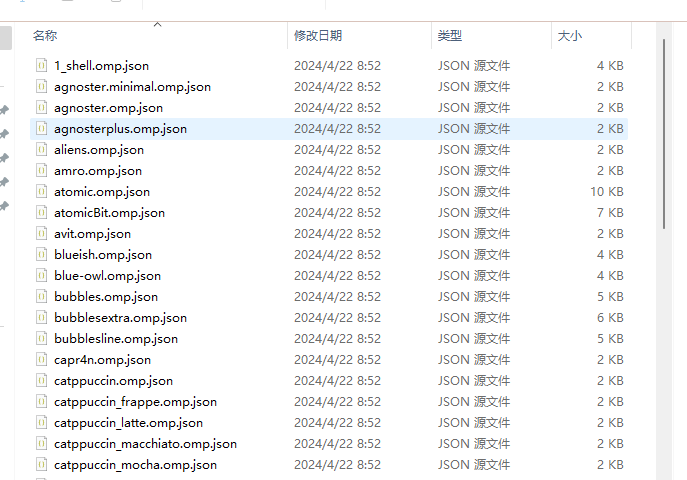

修改默认字体
使用快捷键 ctrl+shift+ 打开配置文件 修改默认字体
json
"defaults":
        {
            "font":
            {
                "face": "MesloLGLDZ Nerd Font"
            }
        },
加载 ohmyposh
在PowerShell_profile.ps1写入以下内容
PowerShell_profile.ps1的由来请查看 windows配置命令别名教程
powershell
C:\Users\25701\AppData\Local\Programs\oh-my-posh\bin\oh-my-posh.exe init pwsh --config 'C:\Users\25701\AppData\Local\Programs\oh-my-posh\themes\capr4n.omp.json' | Invoke-Expression其中 capr4n.omp.json 就是主题文件 需要自己替换
C:\Users\25701\ 这一部分的目录需要按照自己的情况修改
最终效果
每次找这个路径很麻烦 存一下路径
D:\360MoveData\Users\25701\Documents\PowerShell
C:\Users\25701\AppData\Local\Programs\oh-my-posh\themes